 ping.fm
TOP 5 Hard Drive Repair Software to Fix, Recover, and Diagnose Your Drive (2026)
 A failing or corrupted hard drive doesn’t always mean your data is gone – but the software you reach for first matters. Hard drive repair software isn’t a single category: some tools recover lost files, some repair damaged partition tables, some fix boot sectors, and others monitor drive health to catch problems before they escalate. Using the wrong tool for the problem wastes time and can make recovery harder. Below is a comparison of the best options for each scenario – from Disk Drill for data recovery to TestDisk for partition repair, HDDScan for diagnostics, and more.
Before running any repair tool on a failing drive: use Disk Drill to create a byte-to-byte disk image first, and recover any accessible files before touching the drive structure. Running partition repair or CHKDSK on a failing drive without an image first is the most common way to make an already bad situation unrecoverable.
What Type of Hard Drive Repair Software Do You Need?
Hard drive problems fall into distinct categories, and the best tool depends on which one you’re dealing with. A tool that excels at recovering deleted files won’t help with a broken partition table – and vice versa.
| Problem | Type of tool needed | Best pick |
|---|---|---|
| Lost or deleted files, corrupted drive | Data recovery software | Disk Drill |
| Lost partition, damaged partition table | Partition repair tool | TestDisk |
| Non-booting drive, NTFS/FAT boot sector damage | Boot sector repair | TestDisk |
| Bad sectors, SMART monitoring | Disk diagnostics | HDDScan / CrystalDiskInfo |
| Partition resizing, disk management | Partition manager | GParted |
| Drive cloning before repair | Disk imaging | Disk Drill (byte-to-byte backup) |
Disk Drill – Best for Hard Drive Data Recovery
Disk Drill is the most capable tool on this list for recovering data from a failing, corrupted, RAW, or unbootable hard drive. It uses a combination of metadata and signature-based scanning to recover files from drives that other tools can’t access – including drives that Windows or macOS asks you to format, drives showing as RAW or unallocated, and crashed or unbootable system volumes. Beyond recovery, it includes active S.M.A.R.T. monitoring, a byte-to-byte backup module designed specifically for failing drives (which creates an image even when the drive is throwing read errors), and support for RAID arrays and NAS devices.
Where Disk Drill stands apart from diagnostics-only tools is its ability to actually get your data back – not just tell you the drive is failing. It supports all major file systems (NTFS, FAT32, exFAT, APFS, HFS+, ext2/3/4) and runs on both Windows 10/11 and macOS 10.15 or later. TechRadar notes its “broad file format and OS support” and “slick, straightforward design” as standout features.
“Great product. Does exactly what it’s supposed to. I’ve recovered important data from a number of failing drives using it.”
— Trustpilot, verified review
Pros
- Recovers data from corrupted, RAW, crashed, and unbootable drives
- Byte-to-byte backup module works on failing drives with read errors
- Full file preview before recovery
- Active S.M.A.R.T. monitoring included
- Works on Windows and macOS
- Supports RAID, NAS, and virtual disk images
Cons
- Free version limited to 100 MB recovery on Windows
- No built-in partition table repair (use TestDisk for that)
TestDisk – Best for Partition Repair
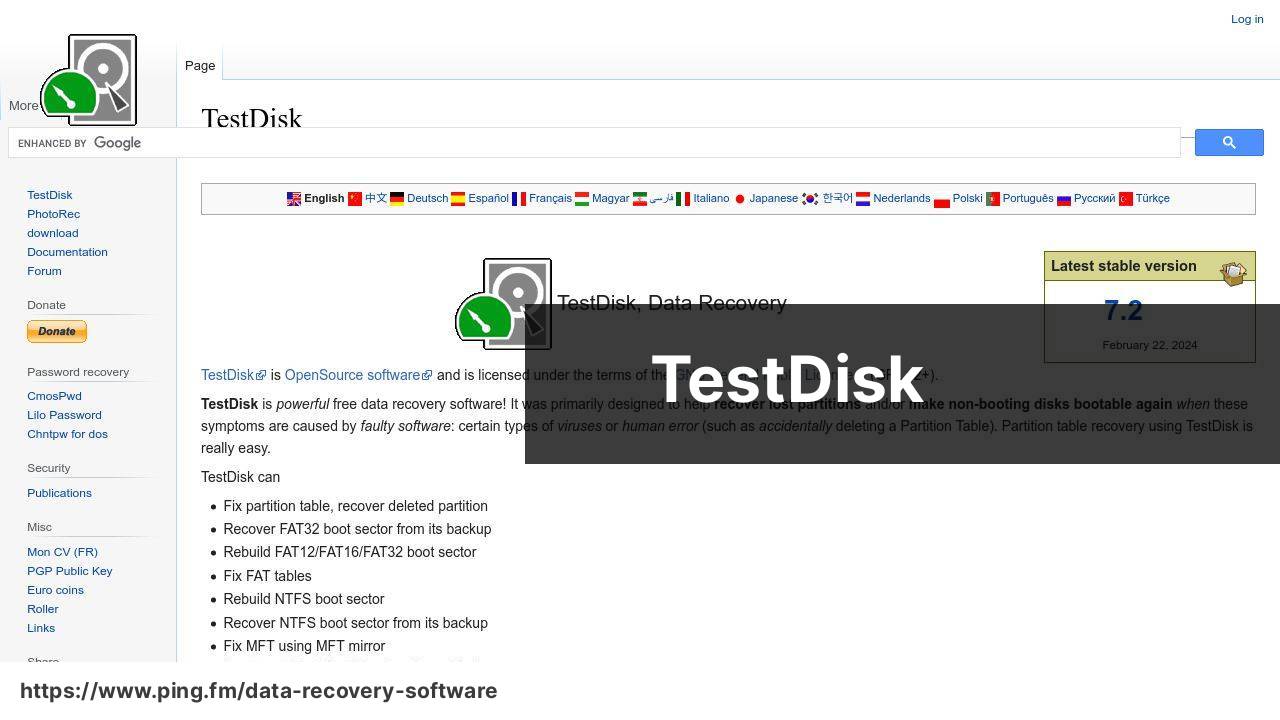
TestDisk is the most powerful free tool for structural hard drive repair – specifically for situations where the partition table is damaged, the drive shows as unallocated, or Windows refuses to boot because of a corrupted NTFS or FAT boot sector. It can rebuild partition tables, recover deleted partitions, repair NTFS boot sectors, restore FAT tables, and locate usable superblocks on Linux file systems. PhotoRec, bundled in the same package, adds signature-based file recovery for cases where the file system is too damaged for directory-based recovery.
The trade-off is the interface: TestDisk is text-based with no graphical UI, which makes it genuinely difficult for users unfamiliar with partition structures. Mistakes are easy to make and hard to undo. For users comfortable with command-line tools and disk concepts, it’s an indispensable free HDD repair tool.
Important: Before running TestDisk on a failing drive, use Disk Drill to create a byte-to-byte image of the drive and recover any files you can access. TestDisk modifies partition structures directly – if something goes wrong, having an image means you can try again from the same starting point.
“If I have a drive that is dying or corrupt I will image it first, then let TestDisk run on the image to recover. Also by the same developer is PhotoRec which is useful if you are just trying to recover a certain type of file.”
— r/sysadmin, Reddit
Pros
- Completely free and open-source
- Rebuilds partition tables and repairs boot sectors
- Works on Windows, macOS, Linux, BSD, and DOS
- Bundled with PhotoRec for file-level recovery
- Lightweight and portable – runs from USB
Cons
- No graphical interface – text-based only
- High risk of mistakes for inexperienced users
- No file preview or recovery session saving
- PhotoRec does not preserve original file names or folder structure
GParted – Best for Partition Management
GParted is the standard free partition manager for resizing, moving, copying, and creating partitions without data loss. Unlike TestDisk, it offers a full graphical interface and makes partition operations accessible to non-technical users. It runs from a live USB (the GParted Live ISO), which means it can manage partitions on the system drive without booting into Windows or Linux. It supports a wide range of file systems including NTFS, FAT32, exFAT, ext2/3/4, and HFS+.
GParted is not a data recovery tool – it won’t recover deleted files or repair corrupted file systems in the way Disk Drill or TestDisk can. Its value is in partition management: fixing incorrectly sized partitions, reclaiming unallocated space, or preparing drives for repair operations.
Pros
- Graphical interface – accessible to non-technical users
- Supports a wide range of file systems
- Runs from live USB without booting into the OS
- Completely free and open-source
Cons
- Not a data recovery or file system repair tool
- Cannot repair corrupted file systems or recover lost files
“GParted is a reliable partition editor. I use it to resize and reorganize partitions before running any recovery tool – it gives you a clean, accurate view of the disk layout without touching the data.”
— r/linuxquestions, Reddit
HDDScan – Best for Bad Sector Diagnostics

HDDScan is a free diagnostic tool for checking the physical health of hard drives, SSDs, and external drives without modifying the data on them. It performs surface tests to identify bad sectors, reads S.M.A.R.T. attribute data to assess drive health, runs temperature monitoring, and produces detailed diagnostic reports. What makes it particularly useful before a repair attempt is that it runs diagnostics non-destructively – you get a complete picture of what’s wrong before committing to any repair operation.
HDDScan doesn’t repair drives or recover data – it’s a diagnostics-only tool. Its value is in identifying the extent and type of damage so you can choose the right repair tool for the job.
Pros
- No installation required – fully portable
- Detailed S.M.A.R.T. reporting and surface scanning
- Non-destructive – doesn’t modify drive data
- Supports HDDs, SSDs, and external drives
Cons
- Diagnostics only – no repair or recovery capabilities
- Interface is complex for beginners
- Windows only
“HDDScan is one of the most thorough surface scan tools available for free. It’s the first thing I run when a drive starts acting suspicious – before touching any repair tool.”
— AnandTech Hardware Forum
CrystalDiskInfo – Best for S.M.A.R.T. Health Monitoring

CrystalDiskInfo is the most widely used free S.M.A.R.T. monitoring tool for Windows. It displays real-time health status, temperature, and detailed attribute data for all connected drives – and can send alerts when a drive’s health deteriorates to a concerning level. Its strength is in early warning: catching signs of drive failure (rising reallocated sector count, increasing uncorrectable errors) before they result in data loss.
Like HDDScan, CrystalDiskInfo is a monitoring tool, not a repair tool. It tells you a drive is failing; it doesn’t fix it. Pair it with Disk Drill for data recovery and TestDisk for structural repair once an issue is identified.
Pros
- Real-time S.M.A.R.T. monitoring with health alerts
- Simple, readable interface
- Free with no recovery limits
- Portable version available
Cons
- Monitoring only – no repair or recovery
- Windows only
- Free version includes ads
“CrystalDiskInfo is the best free HDD health tool for me. If a drive is going bad, it’ll usually show up here first – Reallocated, Pending, and Uncorrectable sector counts climbing. Open it weekly or set up alerts, and you’ll catch problems before they become unrecoverable.”
— AnandTech Hardware Forum
Precautions and Tips:
Before You Run Any Repair Tool ⚠️
- Create a disk image with Disk Drill first. Its byte-to-byte backup module is designed specifically for failing drives – it creates a full image even when the drive is throwing read errors, sector by sector. Once the image is saved, run all repair and recovery operations on the image rather than the original drive. This preserves the current state and lets you retry recovery as many times as needed without additional risk.
- Stop using the drive immediately if you notice signs of failure – unusual sounds, slow response, or disappearing files. Continued use overwrites recoverable data and can worsen mechanical damage.
- Listen to the drive. Clicking, grinding, or repeated ticking sounds indicate mechanical failure. Software repair tools cannot fix this – contact a professional data recovery service before attempting any software-based repair.
- Run CHKDSK (Windows) or First Aid (macOS) as a first step for minor file system errors before reaching for third-party tools. These built-in utilities resolve many common issues at no cost.
- Never run repair operations on the only copy of important data without a backup. Even well-designed repair tools carry some risk of data modification.
Final Thoughts:
The best hard drive repair software in 2026 depends entirely on what’s wrong with your drive. Use them together rather than expecting any single tool to do everything, and always image the drive before beginning any repair operation:
- Disk Drill – for recovering lost or deleted files from corrupted, RAW, crashed, or unbootable drives on both Windows and macOS
- TestDisk – for repairing damaged partition tables, recovering lost partitions, and fixing non-booting drives
- GParted – for resizing, moving, and managing partitions without data loss
- HDDScan – for detailed surface scanning and bad sector diagnostics before committing to a repair
- CrystalDiskInfo – for ongoing S.M.A.R.T. monitoring and early warning of drive health deterioration
For broader coverage of storage tools and drive maintenance best practices, TechRadar’s data recovery roundup is a reliable reference for staying current as new tools emerge.
FAQ
What features should the best hard drive repair software offer?
Top-tier hard drive repair software should provide disk health analysis, bad sector repair, file system correction, and real-time monitoring services.
Can free hard drive repair tools be reliable?
Yes, some free tools like TestDisk are reliable, but they may lack advanced features and user support.
Is data recovery an option within hard drive repair software?
Many hard drive repair applications include data recovery options to retrieve lost files stemming from disk errors or failures.
How does hard drive repair software handle bad sectors?
Effective hard drive repair software will detect and isolate bad sectors, often repairing them or marking them as unusable to prevent data loss.
Can hard drive repair software improve drive performance?
Hard drive repair tools can enhance performance by reorganizing data and fixing corrupt system files that may cause slowdowns.
What hard drive repair software is suitable for businesses?
Businesses should consider robust software like EaseUS Partition Master, designed for more complex system environments.
Is it necessary to have technical knowledge to use hard drive repair software?
Basic hard drive repair tools are user-friendly, though some advanced functions may require more technical knowledge to use effectively.
How often should I use hard drive repair software?
Regular usage, such as monthly or quarterly, can help maintain hard drive health and foresee impending disk issues.
Can hard drive repair software fix all types of hard drives?
Most repair software supports a broad range of hard drives, including HDD, SSD, and external drives, while some specialize in specific types.
Are automatic repair features common in hard drive repair software?
Yes, many hard drive repair programs offer automatic repair functions that can correct errors without user intervention, simplifying maintenance.